Frustrated with 'Connection Failed' errors? Learn how to reset your Shark robot's WiFi, troubleshoot 2.4GHz vs 5GHz issues, and link to the app successfully.
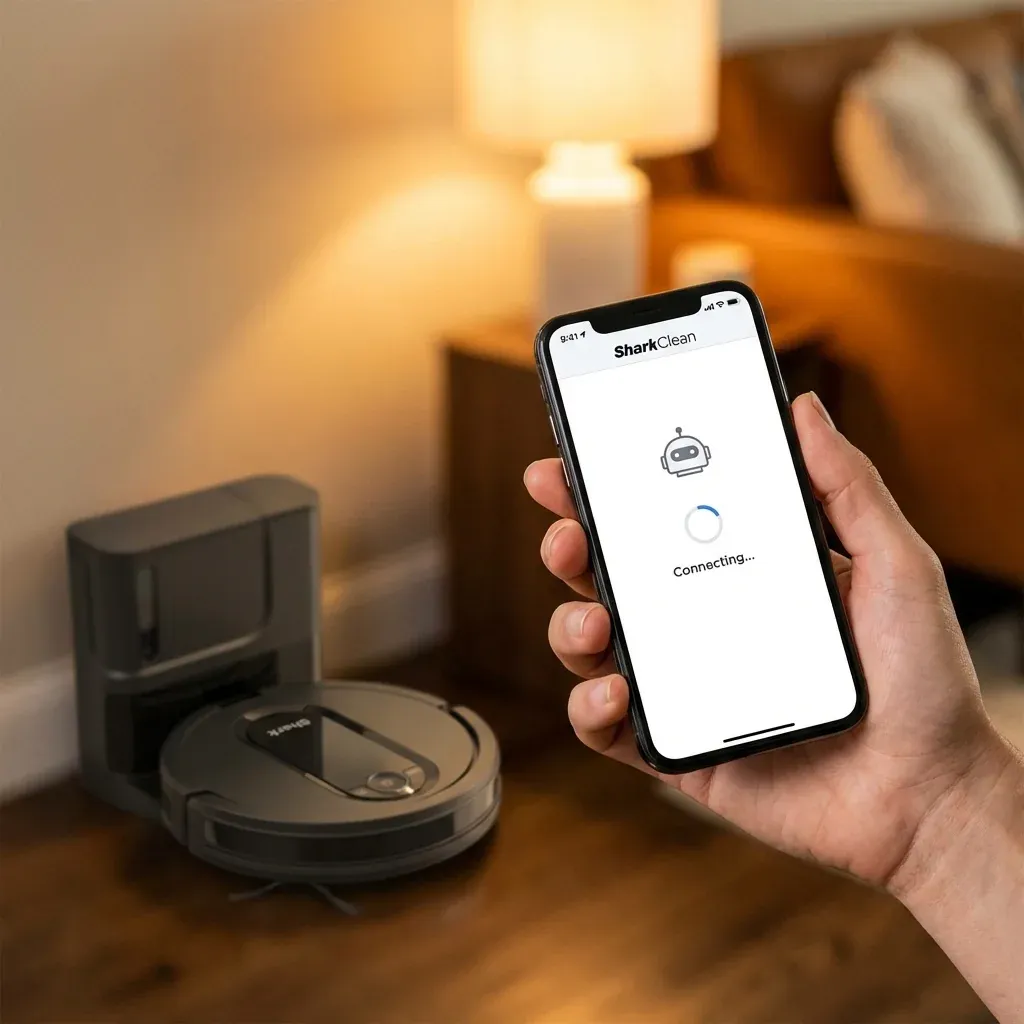
Nothing is more frustrating than a “smart” vacuum that refuses to connect to the internet. If you are staring at a “Connection Failed” screen on the SharkClean app, you aren’t alone. Connectivity is the most common technical hurdle for new Shark robot owners.
Frustrated with ‘Connection Failed’ errors? Learn how to reset your Shark robot’s WiFi, troubleshoot 2.4GHz vs 5GHz issues, and link to the app successfully.
- Symptoms: connection failed error, blinking wifi light, robot not appearing in app
- Tools: smartphone, WiFi password
- Difficulty: Medium
The good news? It’s usually a simple setting on your router or a quick button combo on the robot.
The #1 Culprit: The 2.4GHz Frequency
Shark robots (including Ion, IQ, and AI series) do not support 5GHz WiFi networks. Most modern routers use “Dual-Band” where 2.4GHz and 5GHz share the same name. This confuses the robot.
Shark Robot Spinning in Circles? Fix the ‘Circle Dance’ Error
How to Fix Frequency Issues:
- Check your Router: Ensure your 2.4GHz band is active.
- Temporary Disable: If possible, temporarily disable your 5GHz band in your router settings while you pair the robot.
- Move Away: Sometimes, simply walking to the furthest corner of your house with your phone (where 5GHz is weak but 2.4GHz is strong) can force a successful pair.
Step 1: Hard Reset the Robot’s WiFi
Before retrying the app setup, you must clear the robot’s previous (failed) connection attempts.
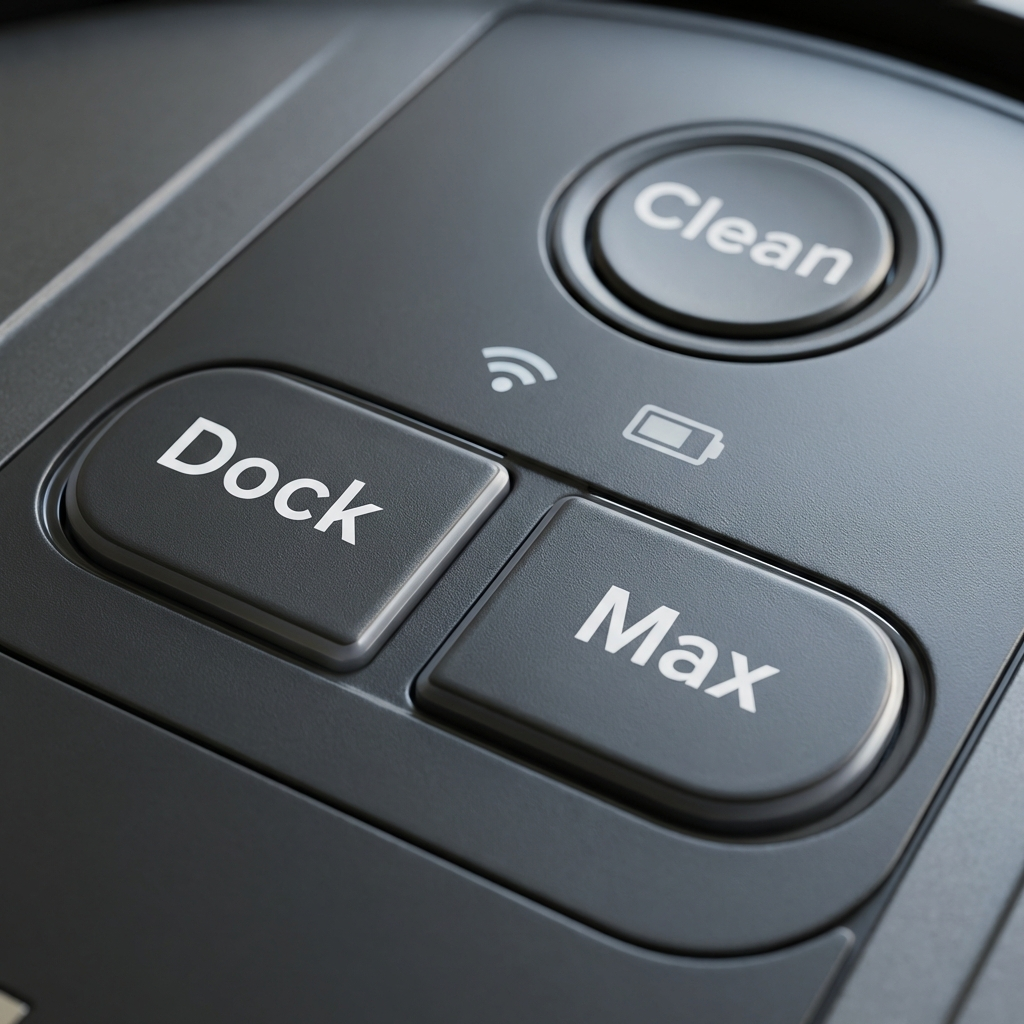 Figure 1: Use the buttons on the top of the robot to reset the WiFi chip.
- Turn the power switch on the side of the robot to OFF (O).
- Wait 10 seconds, then turn it back ON (I).
- Press and hold the Dock and Max buttons simultaneously for about 5-10 seconds.
- The Wi-Fi light (the small blue cone) will start blinking. The robot is now in “Discovery Mode.”
Step 2: The “Airplane Mode” Trick
Your phone often tries to jump back to a “stronger” (but incompatible) data or 5GHz signal during pairing, causing the setup to crash at 90%.
The Pairing Hack:
- Close the SharkClean app.
- Turn on Airplane Mode on your phone.
- Manually turn WiFi back ON (while still in Airplane Mode).
- Open the SharkClean app and start the setup again.
- This prevents cellular data from interfering with the direct connection between your phone and the robot.
Step 3: Check Your Distance
During the initial “handshake,” your phone, the robot, and the dock should all be in the same room as the router.
- Distance: Keep all devices within 10 feet of the router during setup.
- Obstacles: Thick brick walls or large metal appliances (like a fridge) between the robot and router can cause the connection to drop mid-clean.
Still Not Working?
If you’ve tried the steps above and still see “Connection Failed”:
- Special Characters: Ensure your WiFi password doesn’t contain unusual symbols (stick to letters and numbers).
- App Update: Delete and reinstall the SharkClean app to ensure you have the latest firmware support.
- Factory Reset: As a last resort, perform a full factory reset.