Is your robot not connecting or acting glitchy? Learn the button combinations to perform a full factory reset on your Shark Ion robot vacuum.
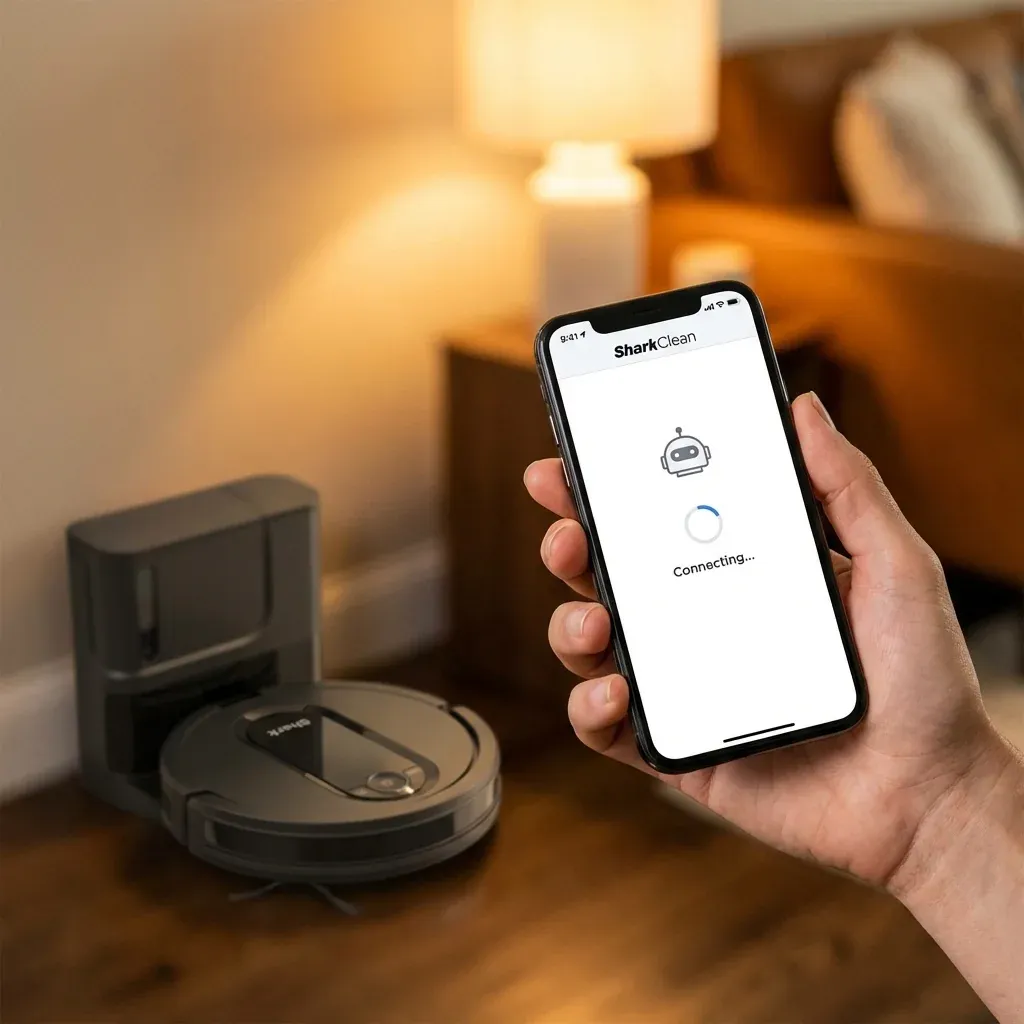
The Shark Ion Robot series (including the popular R75, R85, and RV700) are reliable machines, but their internal software can occasionally get “confused.” This usually happens after a major Wi-Fi outage or if the robot has been trapped in a jam for several hours.
Is your robot not connecting or acting glitchy? Learn the button combinations to perform a full factory reset on your Shark Ion robot vacuum.
- Symptoms: Robot refuses to pair with the app, Wi-Fi light is flashing red even with correct password, Robot is stuck in an error loop after a jam
- Tools: none
- Difficulty: Easy
A factory reset clears the robot’s memory and forces it to start a fresh handshake with your home network. Note that a reset will delete your cleaning schedules, but it will not delete your floor map (on models that support the SharkClean app).
1. The Standard Button Reset
For most Ion models, you can trigger a reset using the physical buttons on top of the robot.
- Flip the side power switch to the OFF (O) position and wait 10 seconds.
- Flip the switch back to ON (I).
- As soon as the lights turn on, press and hold the Dock and Max buttons simultaneously.
- Keep holding for about 10 seconds until you hear a chime or see the lights flash rapidly.
- Release the buttons. The robot is now in “Pairing Mode.”
2. Hard Reboot (The Battery Pull)
If the button reset doesn’t work (e.g., the lights stay solid red), you need to cut all power to the “brain” of the robot.
- Turn the power switch to OFF.
- Flip the robot over and unscrew the battery compartment cover.
- Unplug the battery from the white plastic clip.
- Wait for 5 minutes.
- Plug the battery back in, secure the cover, and turn the power back on.
3. Re-Pairing with the App
After a reset, your phone will likely show the robot as “Offline.” You must re-setup the connection.
- In the SharkClean app, delete the existing robot profile.
- Select “Add a Robot.”
- Follow the prompts. Ensure you are using a 2.4GHz Wi-Fi network, as Ion robots do not support 5GHz.
Reset Methods by Model
| Model Series | Requisite Action |
|---|---|
| Ion RV700 | Hold ‘Dock’ + ‘Clean’ for 10s |
| Ion R75 / R85 | Hold ‘Dock’ + ‘Max’ for 10s |
| IQ / AI Series | Use ‘Delete Map’ in the App |
TIP: Before performing a full reset, try a “Soft Reset” first. Simply turn the power switch to OFF for 10 minutes and then turn it back on. In many cases, this clears the error buffer without deleting your Wi-Fi credentials.
Shark Ion Robot Error Codes Explained
Shark Rotator DuoClean: Front Soft Roller Replacement Guide
When something goes wrong, your Shark robot uses the Clean, Dock, and Max lights to tell you what’s wrong. Here is a quick reference table for the most common codes:
| Light Pattern | Meaning | Solution |
|---|---|---|
| CLEAN Flashing (Red) | Suction Motor Failure | Check the dust bin and filters for clogs. |
| DOCK Flashing (Red) | Robot is Stuck | Move the robot to a flat surface and restart. |
| MAX Flashing (Red) | Side Brush Issue | Check the side brushes for hair or debris. |
| All Lights Flashing | Cliff Sensor Error | Wipe the sensors on the bottom with a dry cloth. |
Frequently Asked Questions
Why is my Shark Robot flashing “Clean” and “Dock” together?
This usually indicates a drive wheel stuck. Flip the robot over and check if something is jammed in the wheels. Give them a few manual turns to clear any hidden debris.
Will a reset fix the “Robot Not Found” app error?
Yes, a factory reset is the standard recommendation for WiFi connection issues. It forces the robot back into “Pairing Mode” so your phone can find it again.
How often should I reset my robot?
You shouldn’t need to reset it often! If you have to reset it more than once a month, check for firmware updates in the SharkClean app or inspect the battery health.