Is your Shark robot stopping with a flashing red 'Clean' light? Learn how to clear dust bin errors, find hidden clogs, and reset your robot vacuum.
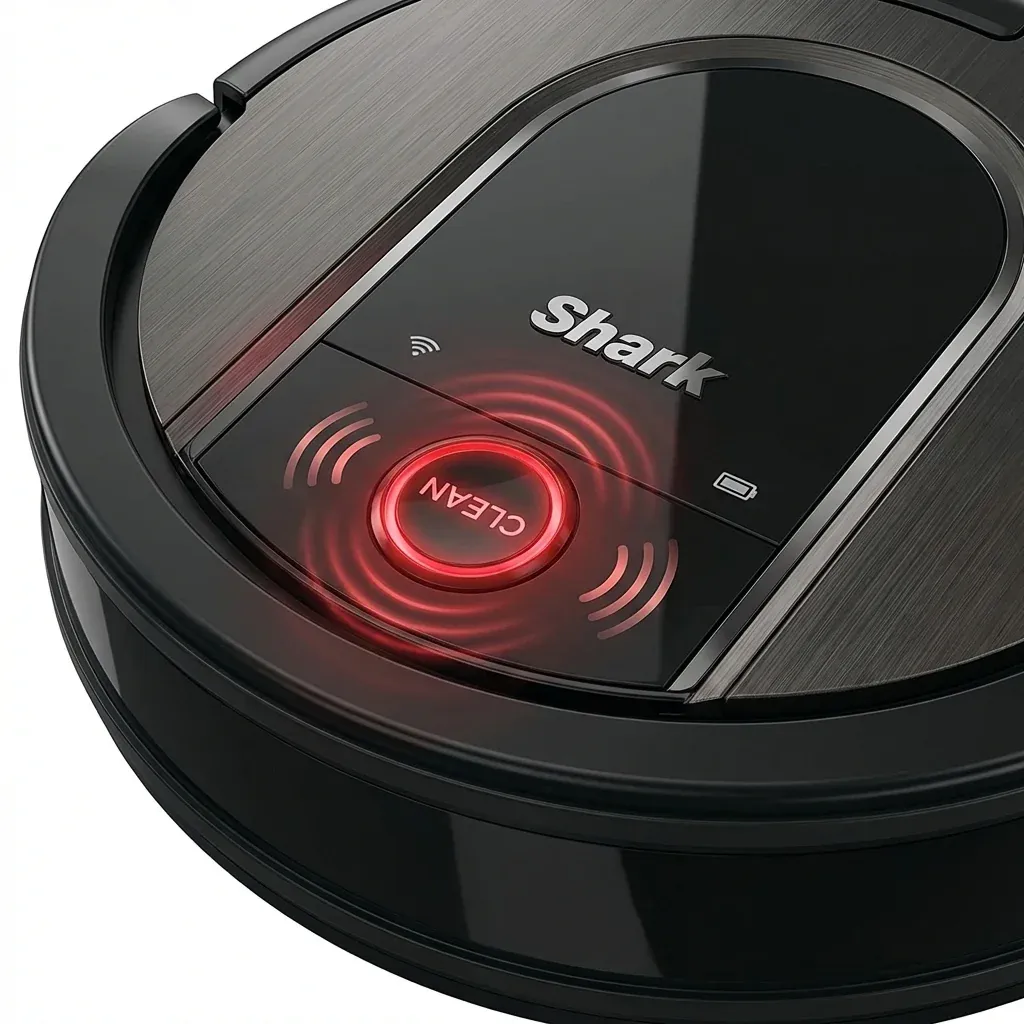
On most Shark robot models, including the Ion, IQ, and AI series, the “Clean” button serves as a multi-color status indicator. When it flashes red, it means the robot has detected a problem that prevents it from finishing its job.
Is your Shark robot stopping with a flashing red ‘Clean’ light? Learn how to clear dust bin errors, find hidden clogs, and reset your robot vacuum.
- Symptoms: The ‘Clean’ button is flashing red, Robot stops moving after starting a clean, A voice prompt says ‘Please clear my dust bin’ even when it is empty
- Tools: Microfiber Cloth, Compressed Air (Optional)
- Difficulty: Easy
The most common culprit for a red “Clean” light is a Dust Bin Error. Here is how to diagnose and fix it in under 5 minutes.
1. The Dust Bin Switch Check
The robot has a small plastic “switch” or “lever” that detects if the dust bin is inserted. If this switch is dirty or stuck, the robot thinks the bin is missing.
- The Fix: Remove the dust bin. Look inside the robot’s main cavity for a small spring-loaded plastic tab. Press it with your finger—it should click and spring back. If it feels “gritty,” use a tiny puff of compressed air or a damp cloth to clean it.
2. Sensor “Blindness”
Inside the robot (where the bin slides in), there are often optical sensors that look at the bin’s fill level. If these sensors are covered in fine sheetrock dust or pet dander, they will trigger a red “Clean” light.
- The Fix: Wipe the two clear plastic “windows” inside the robot’s bin cavity and the corresponding windows on the dust bin itself.
3. Internal Clog (The “Throat”)
Sometimes the bin is empty, but a large clump of hair is stuck in the “throat” of the robot—the short tube between the brush roll and the bin intake.
- The Fix: With the bin removed, turn the robot over. Look through the intake hole. If you see a “wall” of dust, use your fingers to pull it out.
4. The Power Cycle (Reboot)
If the light stays red after cleaning everything, the robot’s software might be stuck in an error loop.
- The Fix:
- Find the physical power toggle on the side of the robot (usually marked I and O).
- Flip the switch to O (OFF).
- Wait for 10 seconds.
- Flip it back to I (ON).
- Wait for the robot to chime before sending it back to its dock.
What the Flashes Mean
| Light Status | Meaning | Action |
|---|---|---|
| Flashing Red (Fast) | Dust Bin not detected | Re-seat bin firmly |
| Solid Red | Total malfunction | Contact support |
| Red + Blue Flashing | Cliff sensor error | Clean the bottom sensors |
| Red Pulsing | Battery Low | Return to Dock |
TIP: If you have an IQ or AI “Self-Empty” model, a red light on the robot often means the base is full. Check the large bin on the docking station; if it’s packed tight, the robot cannot empty itself and will stop cleaning to protect its motor.
Shark Robot Spinning in Circles? Fix the ‘Circle Dance’ Error