Your Shark IQ or Ion robot keeps getting lost? If the vacuum doesn't seem to 'remember' your floor plan, you may need to delete the old map and start fresh. Here's how.
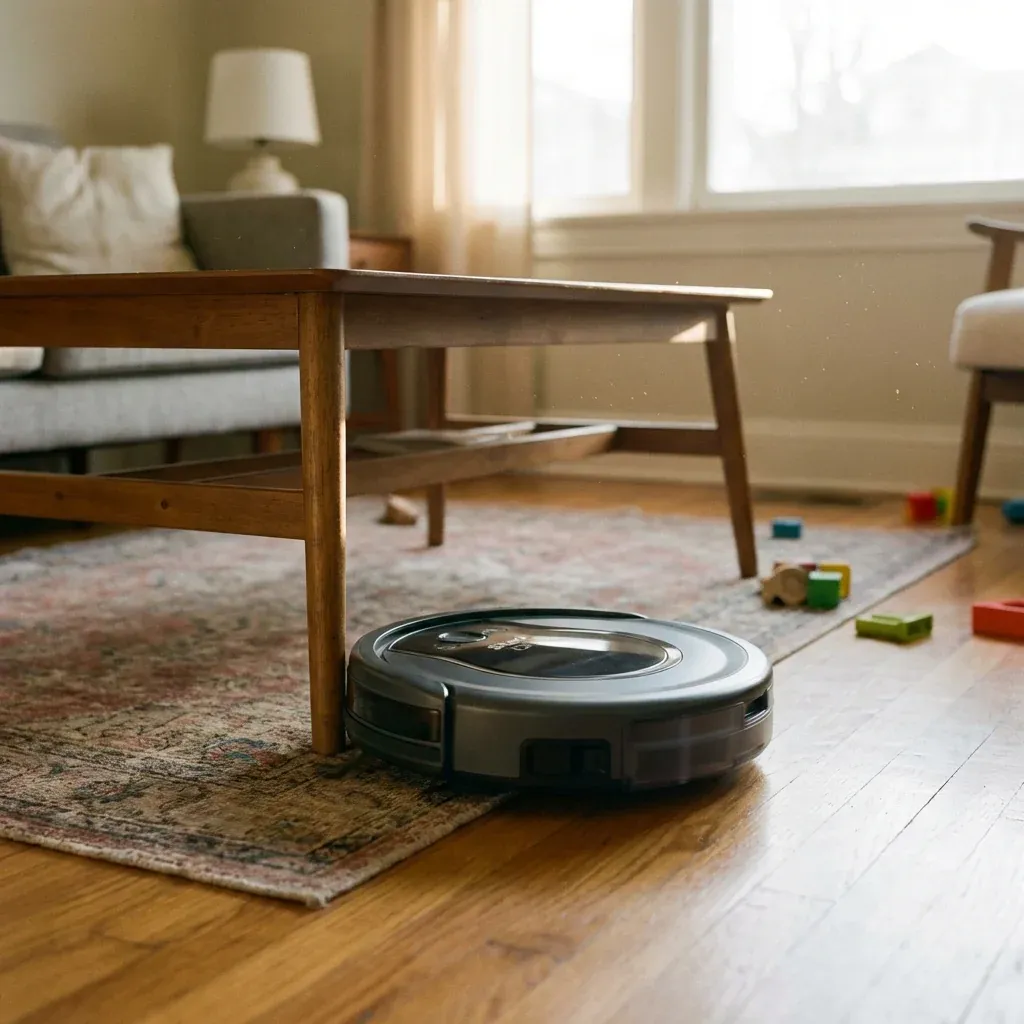
Why Mapping Fails
Your Shark IQ or Ion robot keeps getting lost? If the vacuum doesn’t seem to ‘remember’ your floor plan, you may need to delete the old map and start fresh. Here’s how.
Your Shark robot vacuum creates a “mental map” of your home so it can clean efficiently. But sometimes this map gets corrupted or confused. Common causes include:
- Moving furniture after the initial mapping run
- Poor lighting (the robot needs light to “see”)
- Reflective floors like glossy tiles or mirrors
- App connection issues during mapping
Step 1: Delete the Old Map
Before creating a new map, you must remove the old one from the SharkClean app.
On the App
- Open the SharkClean app on your phone.
Shark Matrix Error Code 9: LIDAR Sensor Fix
-
Tap on your robot vacuum at the top.
-
Go to Settings (gear icon).
-
Find “Maps” or “Mapping Settings”.
-
Tap “Delete Map” or “Reset Map”.
-
Confirm when asked.
Important: This erases all room names and cleaning schedules tied to the old map.
Step 2: Prepare Your Home
For the best mapping results, prepare your home before starting:
- Turn on all lights. The robot’s camera needs good visibility.
- Pick up clutter from the floor (shoes, cables, small rugs).
- Move pet bowls and toys to the side.
- Open all interior doors so the robot can access every room.
Step 3: Start a New Mapping Run
Now we’ll have the robot learn your home again.
Using the App
-
Make sure the robot is on its charging dock.
-
In the SharkClean app, go to the home screen.
-
Look for “Map” or “Create New Map”.
-
Tap “Start Mapping Run”.
-
The robot will leave the dock and explore your home.
This takes 30-60 minutes depending on your home size. Let it finish completely.
Using the Button
If the app isn’t working:
- Press and hold the Dock button on the robot for 5 seconds.
- Wait for the voice confirmation.
- The robot will start mapping.
Step 4: Verify the New Map
Once the robot returns to the dock:
-
Open the app and check the map screen.
-
You should see an outline of your home.
-
If rooms are missing, run the mapping again.
-
Name your rooms by tapping on the map and assigning labels like “Kitchen” or “Living Room”.
Still Having Problems?
If mapping keeps failing:
- Check your Wi-Fi signal where the dock is located. Weak signal causes connection drops.
- Update the app to the latest version.
- Factory reset the robot (hold all three buttons for 10 seconds) and set it up from scratch.
Contact Shark Support at 1-800-798-7398 if problems continue.