Error 9 means your Shark Matrix's LIDAR navigation system has failed. Learn how to clean, reset, and troubleshoot this critical sensor.
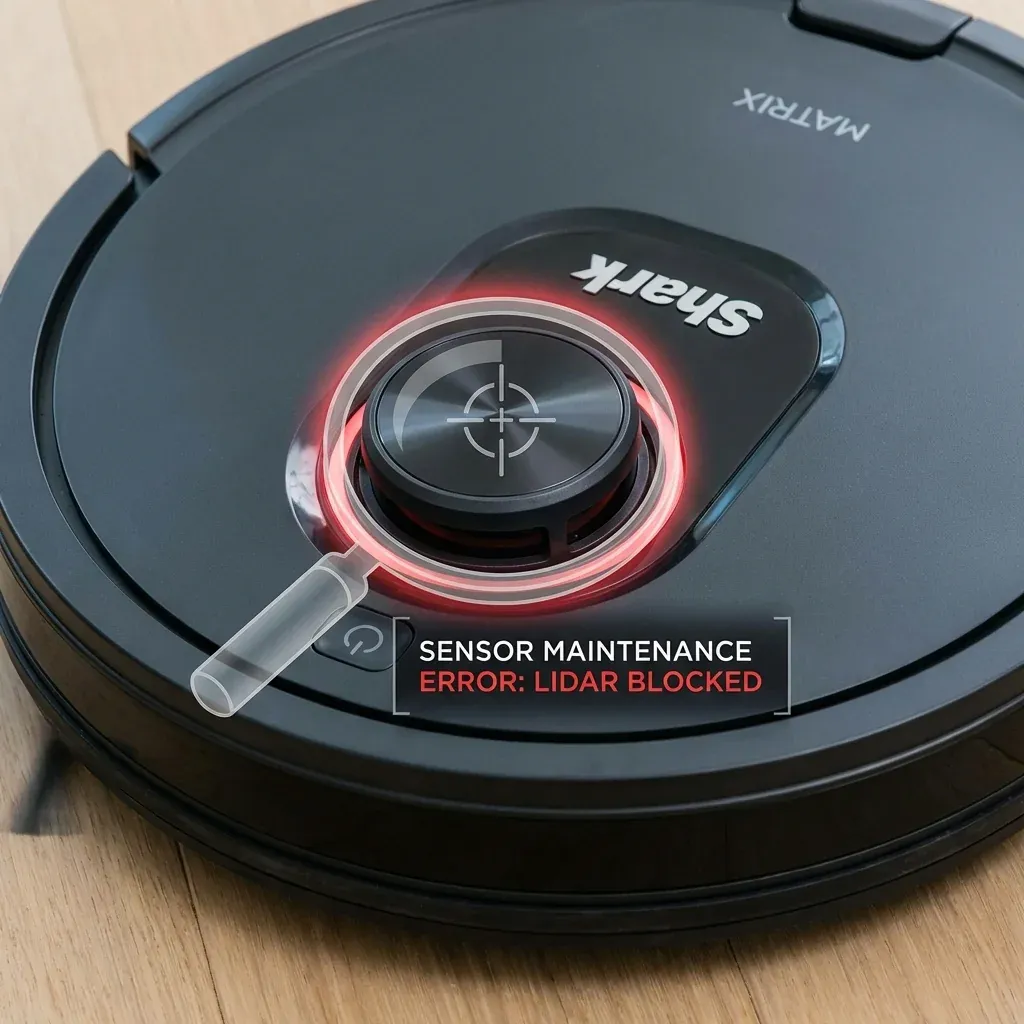
Error Code 9 on your Shark Matrix indicates a problem with the LIDAR (Light Detection and Ranging) navigation system. This is the spinning tower on top of the robot that uses lasers to map your home.
Error 9 means your Shark Matrix’s LIDAR navigation system has failed. Learn how to clean, reset, and troubleshoot this critical sensor.
- Symptoms: Error 9 displayed on app or robot, Robot moves erratically, LIDAR tower not spinning, Mapping consistently fails
- Tools: Microfiber Cloth, Compressed Air (optional)
- Difficulty: Medium
When LIDAR fails, the robot cannot navigate intelligently and will either refuse to run or move randomly.
1. What Causes Error 9?
- Dust on the sensor window: Even a thin layer of dust can block the laser.
- Debris jamming the tower: Hair or string wrapped around the tower base prevents spinning.
- Mechanical failure: In rare cases, the motor that spins the tower burns out.
- Software glitch: The sensor is working but the firmware is not reading it.
2. Step-by-Step Fix
Step 1: Power Off Completely
Turn off the robot using the power switch on the side. Do not just put it in standby mode.
Step 2: Clean the LIDAR Window
- Locate the clear plastic ring around the spinning tower.
- Use a dry microfiber cloth to gently wipe the entire circumference.
- For stubborn dust, use a single puff of compressed air.
- Do NOT use liquid cleaners, as they can leave residue that attracts more dust.
Step 3: Check for Hair Wrap
- Look at the base of the LIDAR tower where it meets the robot body.
- If hair or string is wrapped around it, carefully remove it with tweezers or your fingers.
Step 4: Power Cycle
- Turn the power switch OFF.
- Wait 60 seconds.
- Turn the power switch ON.
- Wait for the robot to boot (about 30 seconds).
- Check if the tower is spinning when you initiate a cleaning run.
Step 5: Factory Reset (If Needed)
If Error 9 persists:
- Open the SharkClean app.
- Go to Settings > Robot Settings > Factory Reset.
- Confirm the reset.
- Re-pair the robot and allow it to build a new map.
When to Contact Support
If the LIDAR tower is physically not spinning at all even after cleaning and resetting, the internal motor may have failed. This requires a warranty replacement.
TIP: To prevent future LIDAR issues, wipe the sensor window once a week as part of your regular maintenance. Dust accumulates faster than you think, especially in homes with pets.