A comprehensive guide to understanding iRobot Roomba error codes, flashing lights, and how to fix common issues like Error 14.
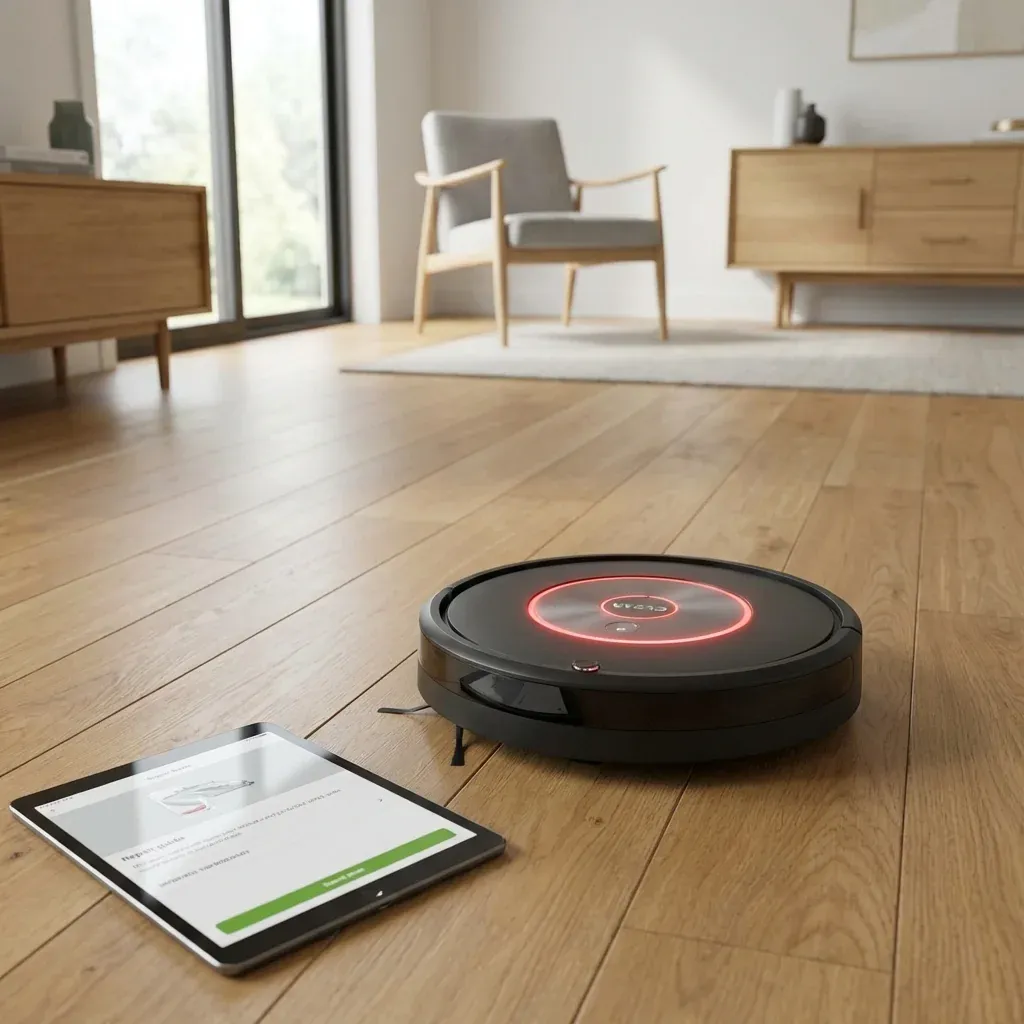
If your Roomba has stopped and is speaking an error message or flashing a red light, it’s trying to tell you exactly what’s wrong. Most Roomba errors are caused by environmental factors like hair tangles, dirty sensors, or a full bin.
A comprehensive guide to understanding iRobot Roomba error codes, flashing lights, and how to fix common issues like Error 14.
- Symptoms: Roomba saying an error number, Flashing red light, Roomba stopped during cleaning
- Difficulty: Medium
- Cost: $0 (DIY maintenance)
TIP: Patience Tip: If your Roomba stops with an error, don’t worry! It’s designed to “sleep” when there’s an issue to protect the motor. You don’t need to rush to fix it; it will wait for you.
Most Common Roomba Error Codes
| Error Code | Meaning | Immediate Action |
|---|---|---|
| Error 1 | Left wheel stuck | Clear any debris from the left wheel. |
| Error 2 | Main brushes stuck | Remove and clean the multi-surface rubber brushes. |
| Error 5 | Right wheel stuck | Clear any debris from the right wheel. |
| Error 8 | Suction motor failed | Clean the filter and ensure the bin is correctly installed. |
| Error 14 | Communication Error | Reinstall the bin and check the mental contacts. |
| Error 26 | Insufficient airflow | Replace the HEPA filter and clean the vacuum path. |
Deep Dive: Fixing Error 14 (Bin Not Detected)
Error 14 is one of the most common issues on the Roomba s9, i7, and j7 series. It means the robot cannot communicate with the dust bin.
How to Fix Error 14:
- Remove the Bin: Press the bin release button and pull the bin out.
- Clean the Contacts: Use a dry cloth (or slightly damp with rubbing alcohol) to clean the golden metal contacts on the bin and the matching pins inside the robot’s bin well.
- Check for Obstructions: Ensure no debris is lodged in the sensors located near the suction port.
- Reinstall Firmly: Slide the bin back in until you hear a clear “click.”
Roomba Flashing Light Meanings
Depending on your model, the light ring around the “CLEAN” button conveys different states:
- Solid White: Fully charged and ready to clean.
- Pulsing White: Charging.
- Solid Red: Error encountered (press CLEAN to hear the error message).
- Flashing Red: Battery too low to start cleaning.
- Blue Ring (Moving): The robot is in “Dirt Detect” mode or looking for its dock.
When to Perform a Reboot
If your Roomba is glitching or showing persistent errors that won’t go away after cleaning:
- Press and hold the CLEAN button for 20 seconds.
- The light ring will swirl white or blink.
- Release the button and wait for the robot to restart (usually takes 1-2 minutes).
TIP: Check your app: The iRobot Home App usually provides a direct link to a video tutorial for the specific error code your robot is showing.