What do the flashing lights on your Shark robot mean? This guide decodes every indicator light pattern for Ion, IQ, AI, and Matrix models.
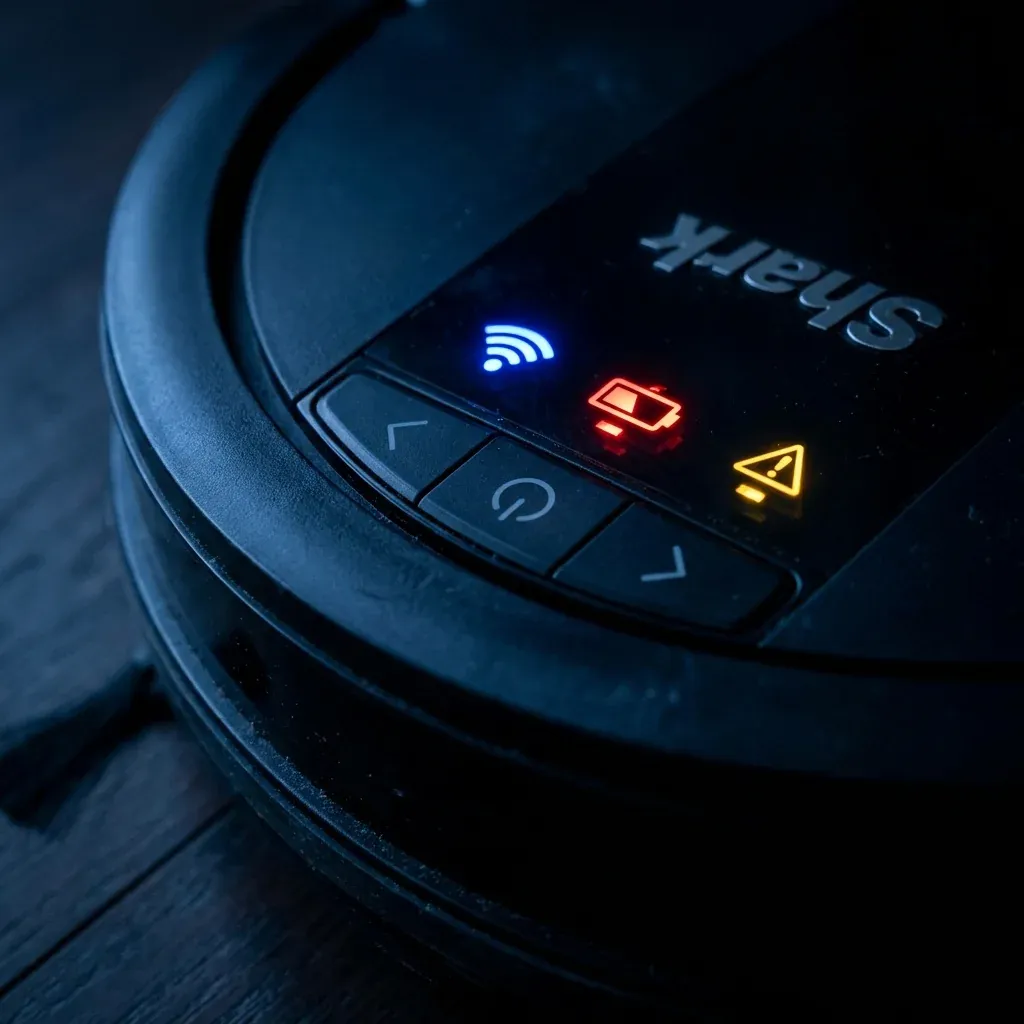
Shark robot vacuums communicate through indicator lights. Different colors and patterns indicate power status, errors, cleaning progress, and more. This guide covers all major Shark robot models.
What do the flashing lights on your Shark robot mean? This guide decodes every indicator light pattern for Ion, IQ, AI, and Matrix models.
- Symptoms: Confused by flashing lights on robot, Robot won’t start and lights are blinking, Want to understand robot status indicators
- Tools: none
- Difficulty: Easy
Universal Light Guide
”Clean” Button Light
| Color/Pattern | Meaning | Action |
|---|---|---|
| Solid Blue | Ready to clean | Normal, press to start |
| Pulsing Blue | Charging | Normal, wait for solid |
| Solid Green | Cleaning in progress | Normal operation |
| Blinking Green | Returning to dock | Normal after cleaning |
| Solid Red | Error detected | Check app for code |
| Blinking Red | Critical error | See troubleshooting |
Dock/Base Light
| Color/Pattern | Meaning | Action |
|---|---|---|
| Solid Blue | Robot docked, charging | Normal |
| No Light | Robot not detected | Re-seat robot on dock |
| Blinking Blue | Self-empty in progress | Normal, wait 30 sec |
Model-Specific Variations
Shark Ion Robot (RV750/RV1001)
- Two Blue Lights Blinking: Low battery, needs charging.
- Alternating Blue/Red: Wi-Fi pairing mode.
Shark IQ Robot (RV1001AE)
- Solid Purple Ring: Scheduled cleaning about to start.
- Spinning Blue: Mapping in progress (first few runs).
Shark AI/Matrix Series
- Solid White: Ready (some models use white instead of blue).
- Amber/Yellow: Firmware updating (do not unplug).
Common Error Light Patterns
Blinking Red (All Models)
This indicates an error. The number of blinks corresponds to the error code.
- 1 Blink: Bumper stuck.
- 3 Blinks: Wheel stuck.
- 6 Blinks: Cliff sensor dirty.
- 9 Blinks: LIDAR error (Matrix only).
Solid Red (Won’t Start)
- Check if the dust bin is properly seated.
- Ensure the brush roll is not jammed.
- Look for “Error” notification in the SharkClean app.
Quick Troubleshooting by Light
| Light | First Step |
|---|---|
| No Lights at All | Check power switch, charge robot |
| Stuck on Blinking Blue | Battery may be dead, try new outlet |
| Red After Cleaning | Check for clogs, empty bin |
| Lights Normal, Won’t Move | Check wheels for hair/debris |
TIP: When in doubt, open the SharkClean app. The app provides specific text descriptions of errors that are much clearer than interpreting light blink patterns.