The Shark Matrix uses advanced LIDAR and cameras. Learn how to fix common problems like failed mapping, getting stuck, and 'Error 9' codes.
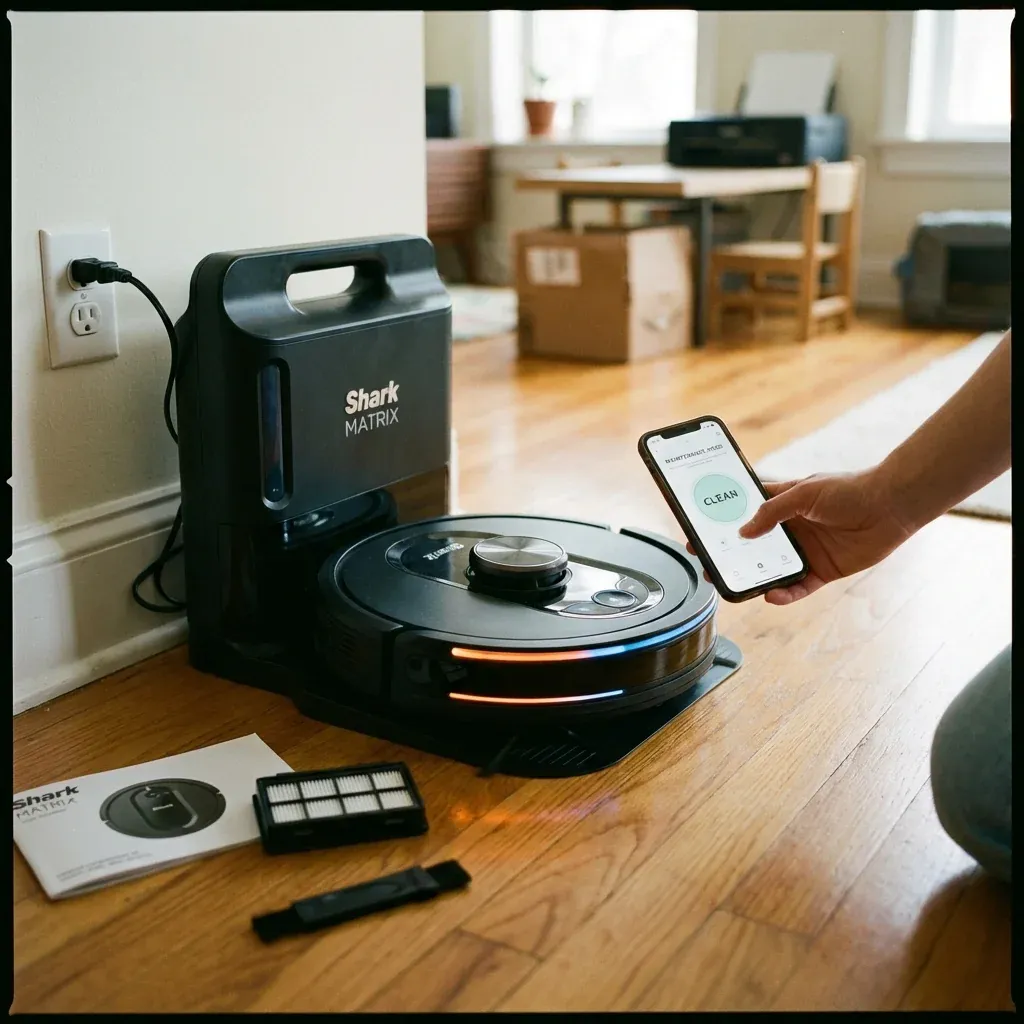
The Shark Matrix series represents Shark’s most advanced robot technology, featuring LIDAR navigation, precision home mapping, and object avoidance. However, this complexity means more potential points of failure.
The Shark Matrix uses advanced LIDAR and cameras. Learn how to fix common problems like failed mapping, getting stuck, and ‘Error 9’ codes.
- Symptoms: Matrix robot won’t map new rooms, Robot gets stuck in same spot repeatedly, Error code appears on app, LIDAR tower not spinning
- Tools: Microfiber Cloth, SharkClean App
- Difficulty: Medium
Here are the most common Matrix issues and how to resolve them.
1. LIDAR Tower Issues
The spinning tower on top of the Matrix contains a laser rangefinder that builds a map of your home. If it malfunctions, navigation fails completely.
Signs of LIDAR Problems
- Robot moves randomly instead of in straight lines.
- App shows “Mapping Failed” or “Error 9.”
- The LIDAR tower is not spinning when the robot runs.
Fixes
- Clean the Tower Window: Use a dry microfiber cloth to wipe the clear plastic window around the LIDAR tower. Dust or fingerprints block the laser.
- Check for Obstructions: Remove any hair or debris wrapped around the base of the tower.
- Reboot the Robot: Turn off via the power switch on the side, wait 30 seconds, and restart.
2. Mapping Failures
The Matrix builds a map over multiple cleaning runs. If the map looks fragmented or incomplete:
Fixes
- Ensure Consistent Lighting: LIDAR works best in moderate light. Very dark or very bright rooms can confuse the sensor.
- Remove Reflective Surfaces: Large mirrors or glass doors can “bounce” the laser and create phantom obstacles.
- Delete and Remap: In the app, go to Settings > Map Management > Delete Map. Run the robot several times to build a fresh map.
3. Robot Keeps Getting Stuck
Matrix robots are smart, but they can still get trapped.
Common Stuck Locations
- Under furniture that is slightly too low.
- On thick rug edges or high thresholds.
- Near cable bundles or curtains.
Fixes
- Use No-Go Zones: In the app, draw virtual barriers around problem areas.
- Raise or Remove Obstacles: Add furniture risers to give the robot clearance.
- Check Wheel Movement: If wheels are jammed, clean them and check for hair wrap.
Quick Reference: Matrix Error Codes
| Error | Meaning | Fix |
|---|---|---|
| Error 1 | Bumper stuck | Press bumper multiple times to free it |
| Error 6 | Cliff sensor | Clean sensors on bottom of robot |
| Error 9 | LIDAR failure | Clean tower, reboot robot |
| Error 14 | Dust bin full | Empty the bin |
TIP: The Matrix learns your home over time. If you rearrange furniture frequently, the robot may struggle. Try to keep major furniture in consistent positions for the best mapping accuracy.