Need to start fresh with your Shark robot's map? Learn how to delete old maps, force a remap, and create room boundaries in the SharkClean app.
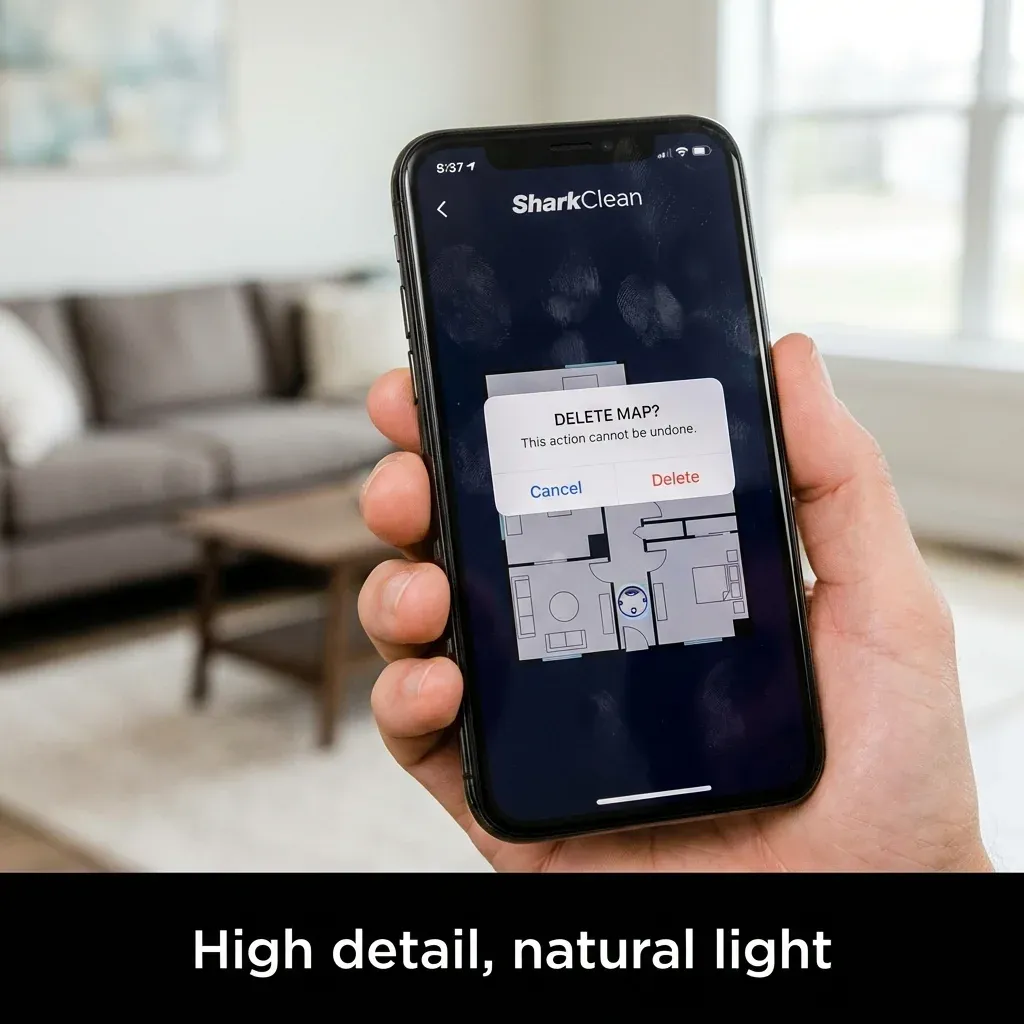
Shark robots with mapping capability (IQ, AI, Matrix) build a floor plan of your home over multiple cleaning runs. Sometimes this map becomes corrupted, incomplete, or outdated (like when you move to a new house).
Need to start fresh with your Shark robot’s map? Learn how to delete old maps, force a remap, and create room boundaries in the SharkClean app.
- Symptoms: Map is fragmented or incorrect, Moved to a new home, Robot keeps getting lost, Want to create new room divisions
- Tools: SharkClean App, Smartphone
- Difficulty: Easy
Here is how to delete the old map and start fresh.
1. When to Remap
- You moved to a new home.
- You significantly rearranged furniture.
- The map shows rooms that do not exist.
- Robot consistently gets lost in certain areas.
- You want to recreate room boundaries.
2. How to Delete Your Current Map
In the SharkClean App
- Open the app and select your robot.
- Tap the Map icon (usually bottom of screen).
- Tap the Settings gear icon on the map view.
- Select Map Management or Edit Map.
- Choose Delete Map or Reset Map.
- Confirm the deletion.
Note
Deleting the map also removes all room labels, schedules tied to specific rooms, and no-go zones. You will need to recreate these after remapping.
3. How to Force a Remap
After deleting the map:
- Dock the robot and ensure it is fully charged.
- Start a full cleaning run (not a spot clean).
- Let the robot run until it returns to the dock on its own.
- Repeat for 2-3 cleaning cycles.
The robot will build a new map over these runs. Each cycle adds more detail and accuracy.
4. Creating Room Boundaries
Once the new map is complete:
- Open the Map in the app.
- Tap Edit Rooms or Divide Rooms.
- Draw lines to separate open floor plans into distinct rooms.
- Name each room (e.g., “Kitchen,” “Living Room”).
This allows you to schedule cleaning for specific rooms only.
Tips for Better Mapping
| Tip | Why |
|---|---|
| Pick up floor clutter | Robot maps around obstacles and may think they are permanent |
| Open all interior doors | Robot needs access to map every room |
| Run during the day | Moderate lighting helps camera-based robots |
| Don’t interrupt | Let the robot finish its full cycle |
TIP: If your robot consistently fails to map correctly, try running it at night with lights on. Sometimes natural daylight creates glare that confuses camera sensors.