A simplified user guide for Shark Matrix series robot vacuums. Covers setup, app pairing, cleaning schedules, and basic troubleshooting in easy-to-read format.
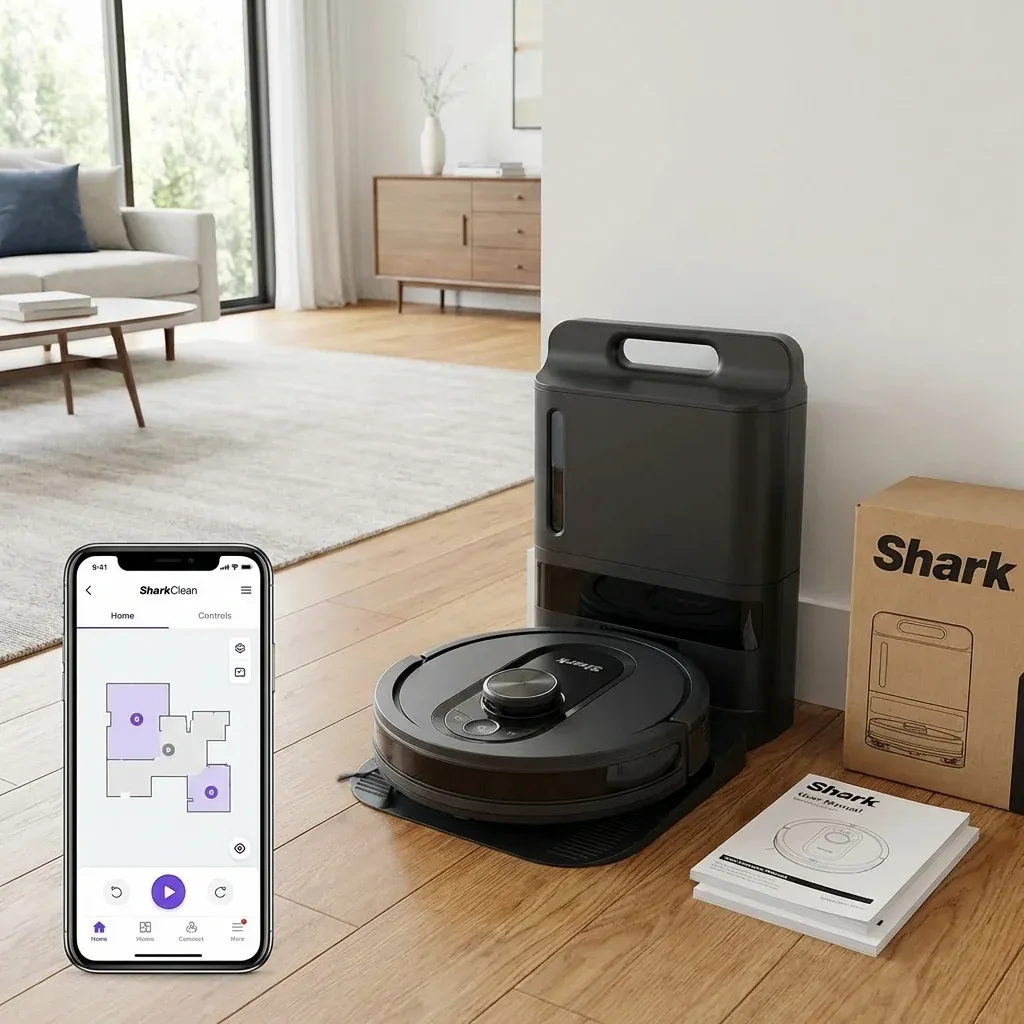
This is a simplified user guide for Shark Matrix Series Robot Vacuums. It covers everything you need to know to set up and use your robot.
A simplified user guide for Shark Matrix series robot vacuums. Covers setup, app pairing, cleaning schedules, and basic troubleshooting in easy-to-read format.
- Symptoms: New Matrix owner needing help, Setting up robot for first time, Want simple instructions
- Tools: Smartphone, Wi-Fi (2.4GHz)
- Difficulty: Easy
PART 1: WHAT’S IN THE BOX
- Shark Matrix robot
- Charging dock (and power cord)
- Boundary strips (optional)
- User manual
PART 2: SETTING UP THE DOCK
Choose a Location
- Against a wall on a hard floor.
- At least 3 feet of clearance in front.
- Near a power outlet.
- Avoid direct sunlight and heat sources.
Connect Power
- Plug the power cord into the dock.
- Plug the other end into a wall outlet.
- A light on the dock will turn on.
Place the Robot on the Dock
- Set the robot on the dock with the charging contacts aligned.
- A light on the robot will pulse (charging).
- Let it charge fully before first use (about 3 hours).
PART 3: PAIRING WITH THE APP
Download the SharkClean App
- Available on iPhone (App Store) and Android (Google Play).
- Search for “SharkClean”.
Pairing Steps
- Open the app and create an account.
- Tap “Add a Product”.
- Select “Robot Vacuum” and your model.
- Follow the on-screen instructions.
- Connect your robot to your 2.4GHz Wi-Fi (not 5GHz).
PART 4: STARTING A CLEAN
From the App
- Open the SharkClean app.
- Tap “Clean”.
- The robot will undock and begin cleaning.
From the Robot
- Press the “Clean” button on top of the robot.
- It will start cleaning immediately.
Returning to Dock
- The robot returns automatically when finished or low on battery.
- You can also press “Dock” in the app.
PART 5: MAINTENANCE
Empty the Dust Bin
- Lift the dust bin lid on top of the robot.
- Remove the bin.
- Empty into trash.
- Replace the bin.
Clean the Brush Roll
- Flip the robot over.
- Remove the brush roll cover.
- Lift out the brush roll.
- Clear hair and debris.
- Reinstall.
Clean the LIDAR Tower
- Wipe the clear window with a dry microfiber cloth.
- Do this weekly.
PART 6: TROUBLESHOOTING
| Problem | Solution |
|---|---|
| Won’t connect to Wi-Fi | Use 2.4GHz network, not 5GHz |
| Gets stuck often | Use No-Go Zones in app |
| Won’t charge | Clean dock contacts |
| Error 9 | Clean LIDAR tower |
Best Shark Vacuum Under $200 (2026 Picks)
TIP: Let the robot run for 3-4 full cleaning cycles before expecting a perfect map. It learns your home over time.